How To Burn Overlay On CapCut PC Easily Pro Guide 2026
How To Burn Overlay On CapCut PC Easily Pro Guide 2026 is very useful for video editors in 2026. Many creators now edit videos on big screens. PC editing feels easy and clean. You get more control. You see every small detail clearly. That really helps.
If you want cinematic effects, burn overlay is a great trick. It adds drama. It adds mood. Honestly, it makes simple videos look professional. In this guide, I will show you easy steps. No confusion. Just simple method anyone can follow.
What Is Burn Overlay Effect In CapCut
Burn overlay is a blend mode. It mixes two layers. One layer is your main video. The second layer is your overlay clip like light leak, fire, or texture. When you choose burn mode, it darkens bright areas and adds strong contrast.
Many YouTube and TikTok creators use this style. It gives emotional look. For example, travel videos look more deep with burn effect. Wedding clips look more dramatic. You know, small effect can change full mood.
Why Use CapCut for PC For Overlay Editing
Editing on CapCut for PC feels different. You get big screen. You get mouse control. Timeline looks wider. It is better than editing on CapCut for Android or CapCut for iOS when you want detailed work.
Some users also try CapCut for Mac, and yes, it works smooth too. But Windows PC users find CapCut very stable now in 2026. Compared to mobile editing, PC version gives more control over blend modes and opacity settings.
How To Burn Overlay On CapCut PC Easily Pro Guide 2026 Step By Step
Now let’s go to the main part of How To Burn Overlay On CapCut PC Easily Pro Guide 2026. Follow these steps carefully.
Step 1 Import Your Media Files
First, open CapCut on your PC. Click on New Project. Import your main video. After that, import the overlay clip. It can be fire, smoke, dust, or light leak video.
Drag your main video to timeline. Then place overlay clip above the main layer. This is important. Overlay must stay on top layer.
Step 2 Apply Burn Blend Mode
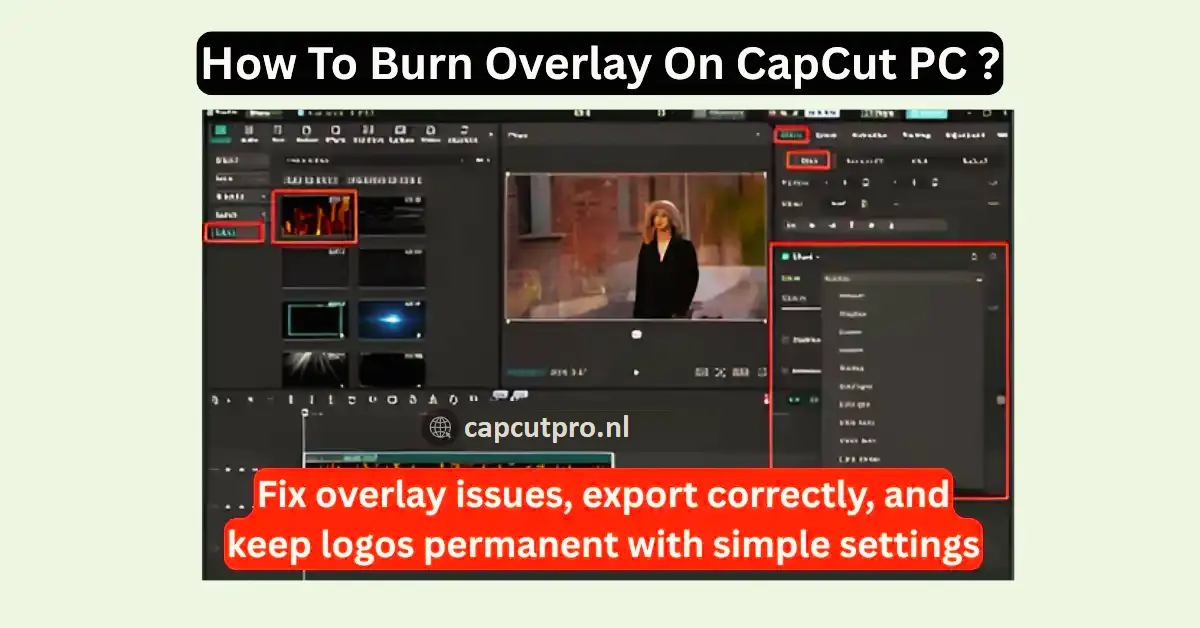
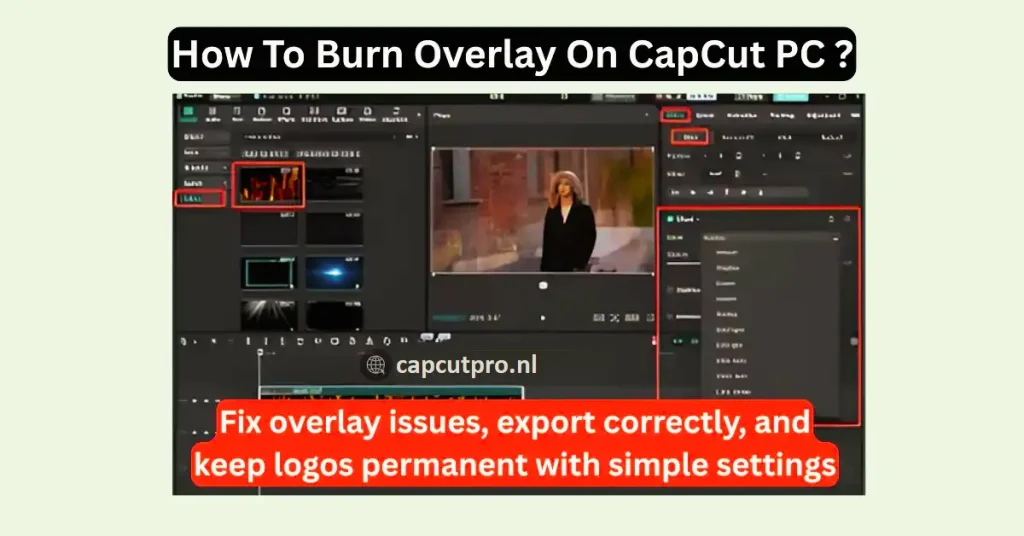
Click on the overlay clip in timeline. Go to the right panel. Find Blend option. Click on it. You will see many blend modes like overlay, multiply, screen, and burn.
Select Burn mode. You will instantly see darker and cinematic effect. Now adjust opacity. Usually 40% to 70% looks good. Do not keep 100%. It may look too dark.
Step 3 Adjust Color and Opacity
Now tweak brightness and contrast. Use adjustment tools. Match overlay tone with your main video. If video becomes too dark, reduce opacity little bit.
Well, take your time here. Small changes make big difference. Always preview full clip before final decision.
Pro Tips For Better Burn Overlay Effect
If you want more professional result, follow these tips.
Use High Quality Overlay Clips
Always use HD or 4K overlay clips. Low resolution overlay looks blurry on PC. Light leak and fire overlays work best with burn mode.
You can download free overlays from trusted websites. Avoid random sources. Quality matters a lot.
Use Keyframes For Smooth Effect
Use keyframes to control opacity. For example, start with 0% opacity. Then slowly increase to 60%. It creates smooth transition.
This method is great for cinematic intro scenes. Frankly speaking, it is more natural than overlay is.
Common Mistakes To Avoid
Novices commit minor errors.
First, they keep opacity too high. Video becomes too dark. Always balance it.
Second, they use low quality overlay. That ruins sharpness.
Third, some people use CapCut Old Version. Older version may not support advanced blend properly. Always update software.
Also, export in low bitrate can destroy effect quality. Use proper export settings.
About CapCut Pro and Other Versions
Some users ask about CapCut Pro. Yes, Pro version gives extra filters and advanced tools. It helps in professional editing.
On mobile side, many people search for CapCut Pro APK or CapCut Mod APK. Honestly, mod versions are not safe. They can harm your device.
Some websites offer CapCut Pro APK Download and even CapCut Pro APK Download Latest Version. But always download from official source only.
For PC users, official CapCut for PC version is enough for burn overlay editing. You do not really need risky mod apps.
Best Export Settings For Burn Overlay Videos
After editing, click Export button.
Select 1080p in YouTube. Export in 2K or 4K, should your system be able to.
Keep bitrate high for better quality. Use MP4 format. It works everywhere.
Before uploading, watch full video once. Check dark areas. Make sure overlay is balanced.
Conclusion
How To Burn Overlay On CapCut PC Easily Pro Guide 2026 is not hard if you follow simple steps. Just import video. Add overlay. Apply burn blend. Adjust opacity. That’s it.
Burn overlay effect can change full mood of your video. It adds emotion. It adds depth. But always keep balance. Too much effect can spoil clip.
Well, practice is key. Try different overlays. Experiment with opacity. Slowly you will master it.
Now open your editor and try How To Burn Overlay On CapCut PC Easily Pro Guide 2026 today. You will see the difference yourself.
FAQs
1. What is burn overlay in CapCut PC
Burn overlay is a blend mode that darkens bright areas and adds contrast by mixing overlay layer with main video for cinematic effect.
2. Is CapCut for PC free to use
Yes, CapCut for PC is free. Basic editing tools and blend modes are available without payment.
3. Can I use burn overlay in CapCut for Android
Mobile version supports blend modes, but PC version gives better control and detailed adjustment.
4. Is CapCut Pro better for overlays
CapCut Pro offers extra filters and tools, but burn overlay feature works well in free PC version too.
5. Why my overlay looks too dark
Your opacity may be too high. Reduce opacity and adjust brightness to balance the effect.
6. Which version is best for PC editing
Latest official CapCut for PC version is best for stable performance and full editing features.